
Your new festive range has arrived: 30 kurta designs, four sizes each, photos shot and ready. Listing them one by one on Meesho takes an afternoon. Then you open Flipkart and type the same names, sizes, fabric and prices all over again. A week later, a few rows come back rejected and you are fixing a spreadsheet when you should be packing orders.
Meesho bulk listing is the way out of the first half of that problem: you fill one Excel template for many products and upload it in one go. This guide shows how the bulk upload works, which mistakes get rows rejected, and how to list the same products on Flipkart and other marketplaces without retyping everything. You can follow every step with nothing more than the Supplier Panel and a spreadsheet.
Key takeaways
- Bulk listing on Meesho means downloading the Excel template for one category, filling one row per product, and uploading the file from the Supplier Panel.
- Each category has its own template. Use the template for the exact category you are listing in, or the upload fails.
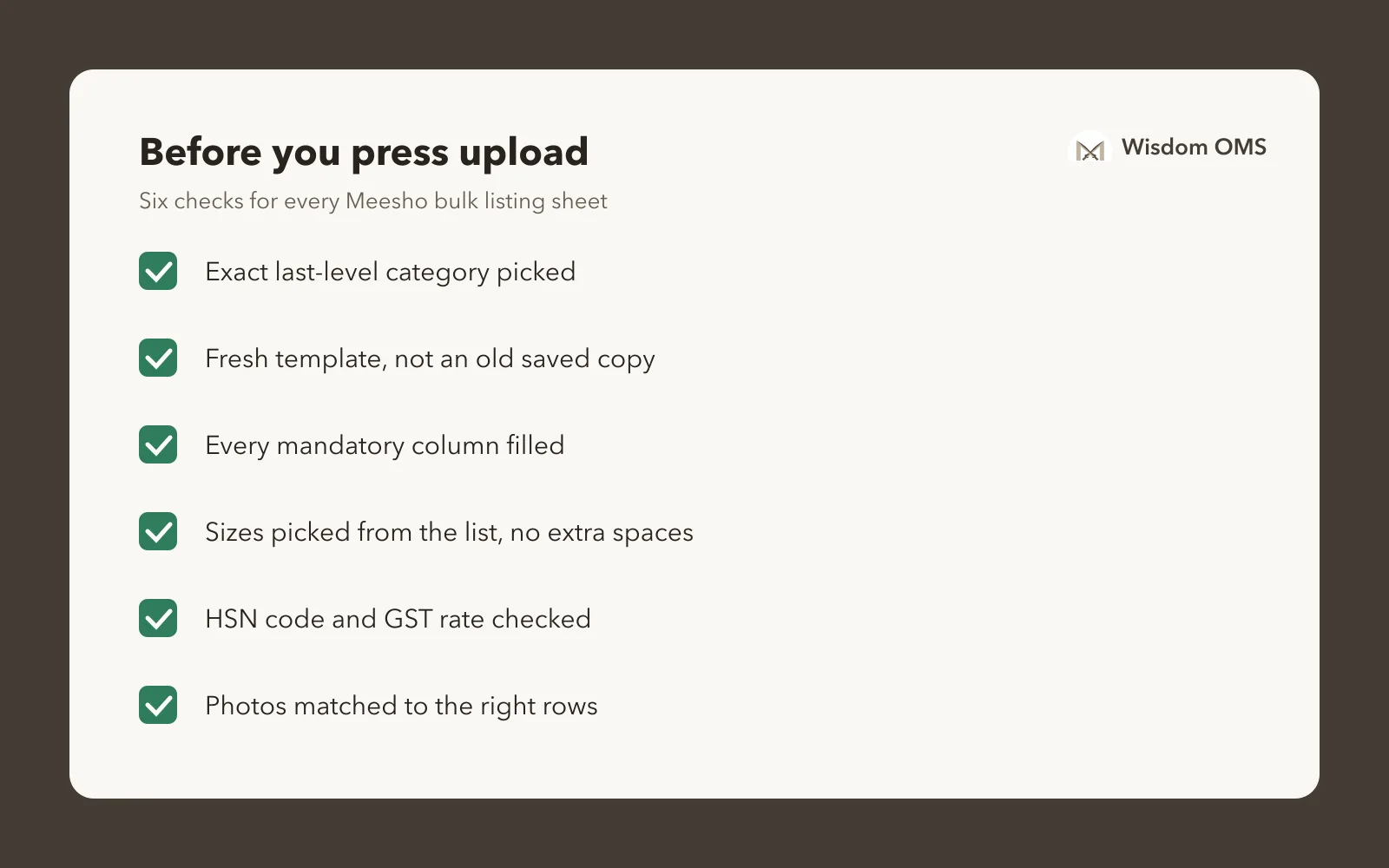
- Most rejected rows come from blank mandatory fields, size names the category does not accept, and wrong tax details. Check these three before you upload.
- Listing on Flipkart too? Keep one master sheet of your products and copy from it, so names, sizes and costs stay the same everywhere.
How Meesho bulk listing works
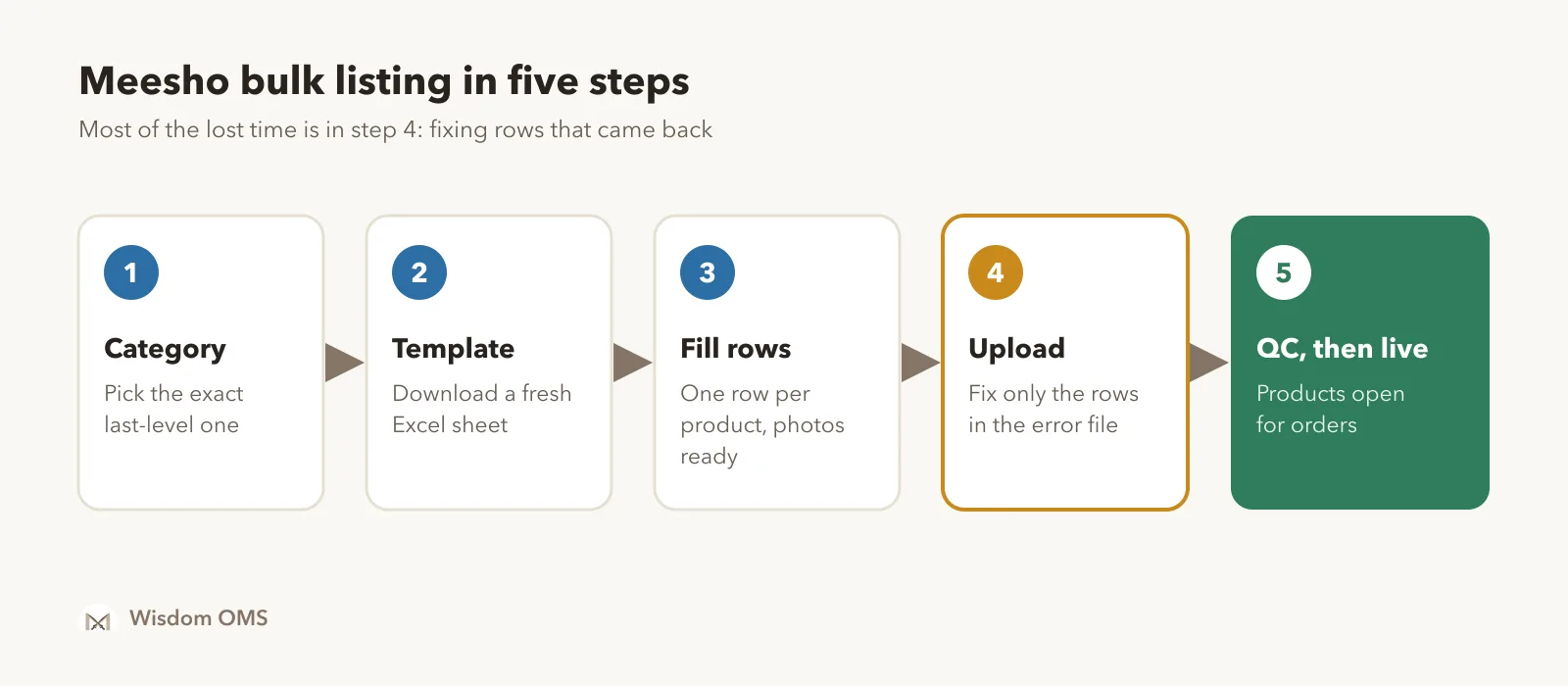
Meesho bulk listing lets you add many products in one upload instead of filling the single-product form again and again. You pick a category, download its Excel template, fill in one row per product, and upload the file; Meesho checks it and sends the products to quality check (QC) before they go live.
A catalog on Meesho is a group of related products shown together to buyers, for example the same kurta design in four colours. A QC check is Meesho's review of your photos and details before a listing goes live. Both matter for bulk uploads: how you group rows decides how buyers see your designs, and QC decides when they can buy them.
At the time of writing, the bulk option sits in the catalog upload section of the Meesho Supplier Panel. Menu names change from time to time, so if you cannot find it, check the help section of your own panel.
Step by step: your first bulk upload
The short version: one category per file, every mandatory column filled, photos ready before you start. Here is the full routine.
- Pick the exact category. Search for the category your products belong to, down to the last level (for example, women's kurtas, not just women's clothing). The template's columns depend on it.
- Download that category's template. Read the instructions sheet once. It tells you which columns are mandatory and what values each dropdown accepts.
- Fill one row per product. Product name, price, wrong or defective return price, stock per size, HSN code, GST rate, weight, and the category's own details such as fabric, sleeve length or occasion.
- Keep photos ready. Have every product's images sorted and named so you can match them to the right row without guessing.
- Upload a small batch first. Send five or ten products before the full range. If they pass, you know your template is filled the right way.
- Fix the error file, not the whole sheet. If rows fail, download the error file, fix only those rows and upload them again.
- Wait for QC. Products go live after QC passes. Track them in your inventory and catalog lists.
Group colours of the same design together, so they reach buyers as one catalog. Ten designs in three colours each is ten catalogs a buyer can browse, not thirty scattered single listings.
Why bulk upload rows get rejected
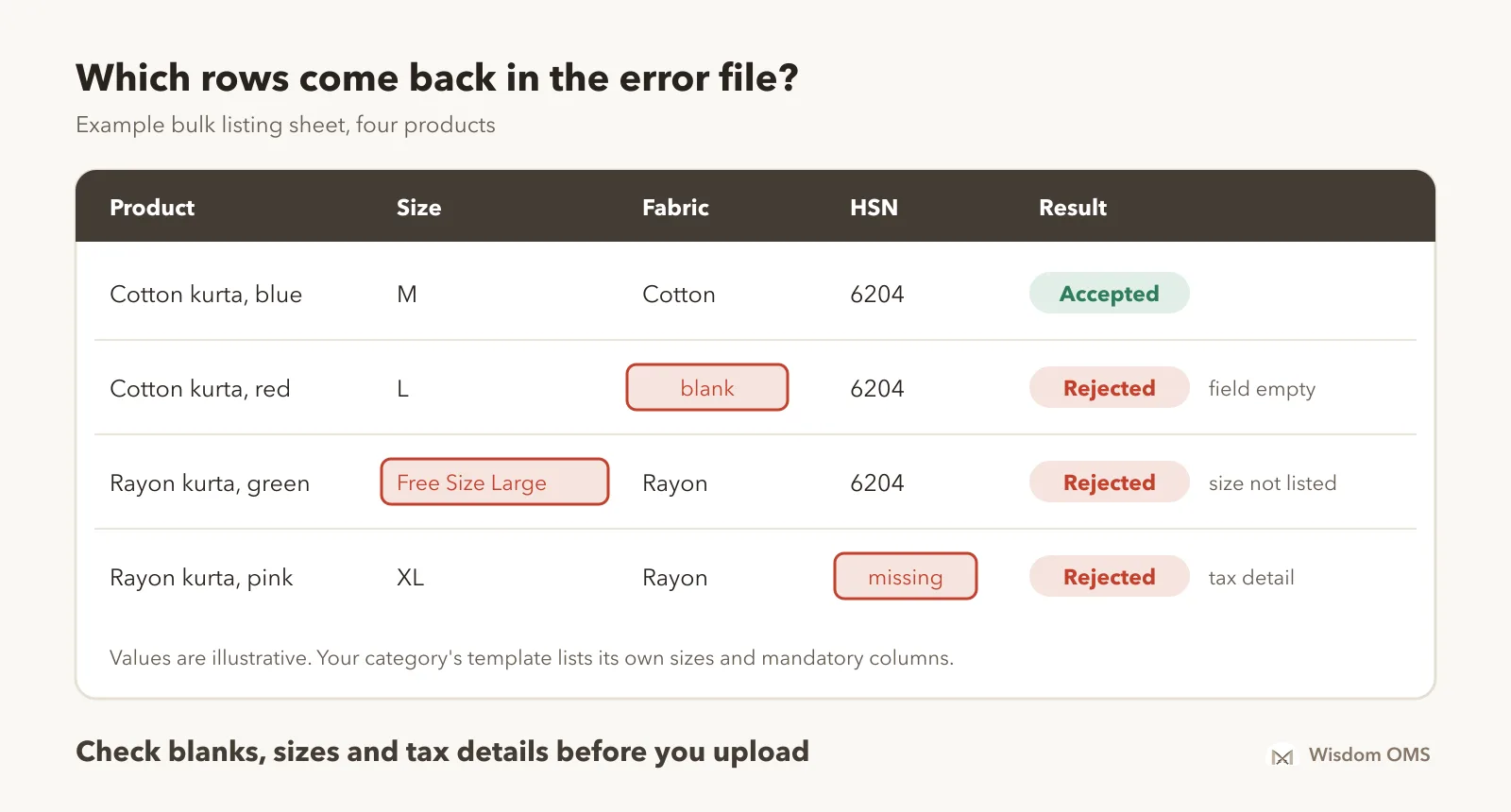
A row is rejected when Meesho cannot accept one or more of its values. The same few mistakes turn up again and again, and you can catch them before you upload.
| Problem | What it looks like | How to fix it |
|---|---|---|
| Blank mandatory field | Fabric, pattern or occasion left empty | Fill every column marked mandatory in the instructions sheet, even if it feels obvious |
| Size not accepted | "XL " with a space, "Free Size Large", "9-10 Yeras" | Pick sizes from the template's own list; do not type your own size names |
| Wrong tax details | HSN code missing, GST rate that does not match the product | Use the HSN code and GST rate your CA confirmed for the product, the same on every row of that product |
| Price fields out of line | Return price that breaks the template's price rule | Read the rule for return price in the instructions sheet and check it per size |
| Wrong template | Sheet from another category, or an old saved copy | Download a fresh template for the category every time you start a new batch |
One habit saves the most time: copy values from a dropdown or a master list instead of typing them. A single extra space in a size or colour is enough to send a row back.
Listing the same products on Flipkart too
You can sell the same products on Flipkart, Amazon, Myntra and Snapdeal, but each marketplace has its own form, its own templates and its own names for the same details. The way to keep this manageable is one master sheet with your product data, filled once and copied into each marketplace's template.
Your master sheet needs, for every product and size: your SKU code, product name, cost price, stock, colour, size, fabric and other details, HSN code, GST rate, weight and photo file names. Keep a separate selling price column for each marketplace, because fees and shipping charges are different on each one. Set each price from your own cost and the current fees shown on that marketplace's seller panel, not by copying the Meesho price.
Using the same SKU code everywhere also pays off later: when an order comes in from any store, you know exactly which item to pick and which stock to reduce. If your listings are split across stores, our guide to selling on many channels covers the rest of the setup.
What one form saves: a worked example
Here is a hypothetical seller listing 30 new designs on both Meesho and Flipkart. Your own times will differ, but the shape of the saving holds.
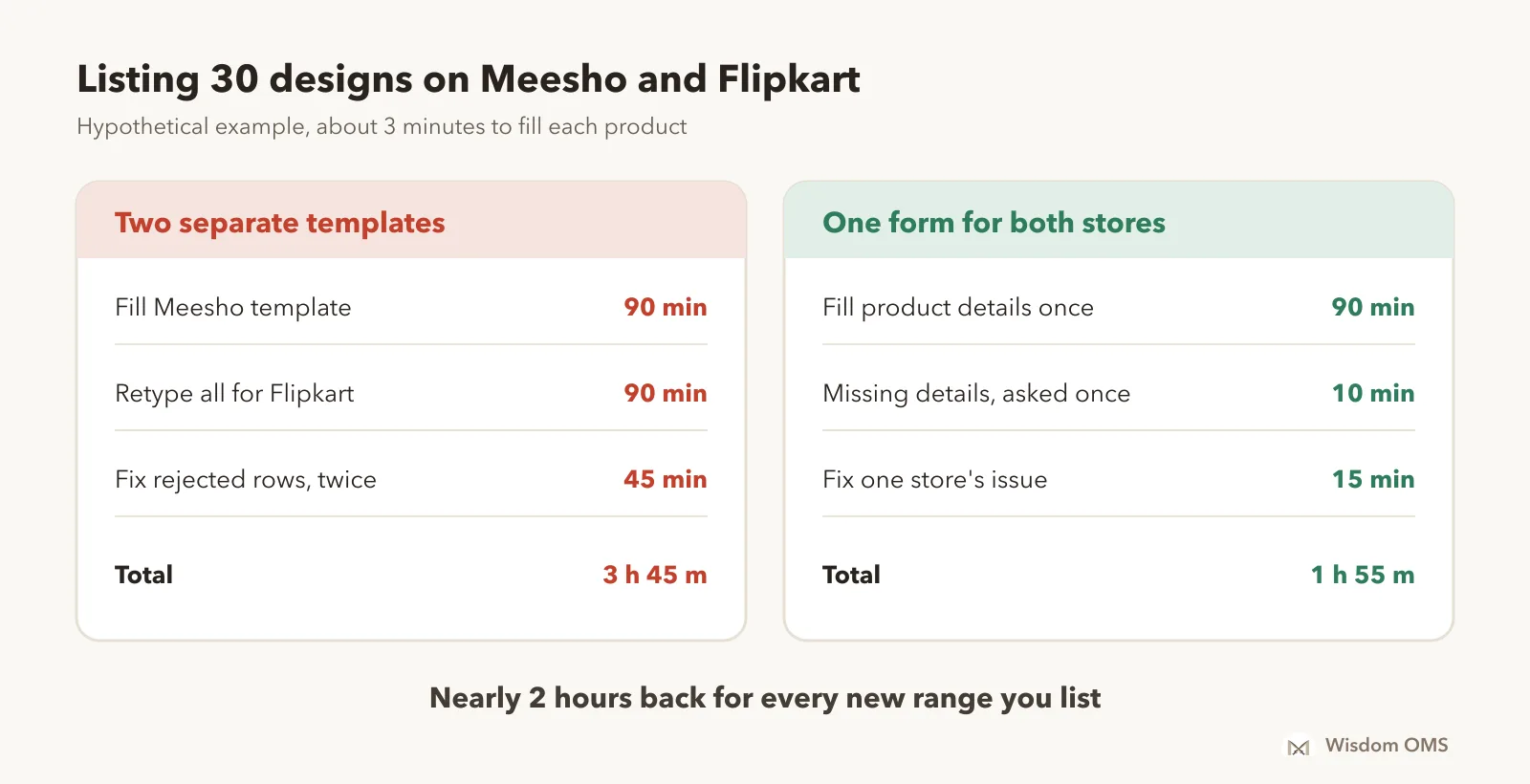
Filling a template at about 3 minutes per product takes 90 minutes for 30 designs. Doing it again for Flipkart's template is another 90 minutes, and two rounds of fixing rejected rows on both marketplaces add about 45 minutes: around 3 hours 45 minutes in all. Filling the details once (90 minutes), answering the missing details once for the whole batch (10 minutes) and fixing any store-specific issue (15 minutes) comes to about 1 hour 55 minutes. Before Diwali, when new stock arrives every few days, that difference adds up fast. Our Diwali warehouse checklist covers the rest of the sale-week prep.
How Wisdom OMS handles this
In Wisdom OMS, you list a product on your Meesho and Flipkart stores from one form on the Listings screen, and the same Create listing screen also lists on Amazon, Myntra and Snapdeal. You fill the product once, set a separate price for each marketplace and enter your cost price while listing, so your profit figures are right from the first order.
For a whole range, Many products works like a bulk upload. Sizes can be typed as S:5; M:10, the category's own size names show as chips you can click, and a small spelling slip in a size is read as the size you meant. When the marketplace still wants details such as fabric or measurements, the missing count on a row opens them and asks for each one once for the whole upload. Colours of one design go to Meesho as one catalog.
Each store is checked separately before you submit: stock above a marketplace's limit is flagged on the size row, and if one store fails while the others go live, you fix and resubmit just that store. The Uploads screen shows how each store is getting on, and Create listing shows what each submit will cost before you send it. See more on the Wisdom OMS product page, or read what an order management system does.
Frequently asked questions
How do I do bulk listing on Meesho?
Open the catalog upload section of the Meesho Supplier Panel, choose the bulk option, and pick the category you are listing in. Download that category's Excel template, fill one row per product, and upload it. Fix any rows in the error file, and the products go live after Meesho's quality check.
Where can I get the Meesho bulk listing Excel sheet?
The bulk listing Excel sheet is downloaded from the Meesho Supplier Panel after you pick a category; each category has its own template. Download a fresh copy for every new batch instead of reusing an old file, because the columns can change.
Why was my Meesho bulk upload rejected?
Most rejections come from a blank mandatory field, a size name the category does not accept, a missing or wrong HSN code or GST rate, or a template from a different category. Download the error file from the Supplier Panel; it shows which rows failed so you can fix only those and upload them again.
Can I list the same product on Meesho and Flipkart?
Yes. Many sellers list the same products on Meesho, Flipkart and other marketplaces. Each marketplace has its own listing form and templates, so keep one master sheet of product details and use the same SKU code everywhere, which keeps stock and orders easy to match.
Should my price be the same on Meesho and Flipkart?
Not necessarily. Fees, shipping charges and return costs differ between marketplaces, so the same selling price can leave you a different profit on each. Work out each marketplace's price from your cost and the current charges shown on its seller panel.
List once, sell everywhere
Bulk listing turns an afternoon of forms into one sheet: the right category, a fresh template, every mandatory field filled and sizes picked from the list. Keep a master sheet so the same products reach Flipkart and your other stores without retyping. Once orders start coming in, our guide to Meesho label crop keeps dispatch just as quick. Start free with Wisdom OMS and list, ship and track every store from one screen. Prefer your phone? Get the Wisdom app on Google Play.