
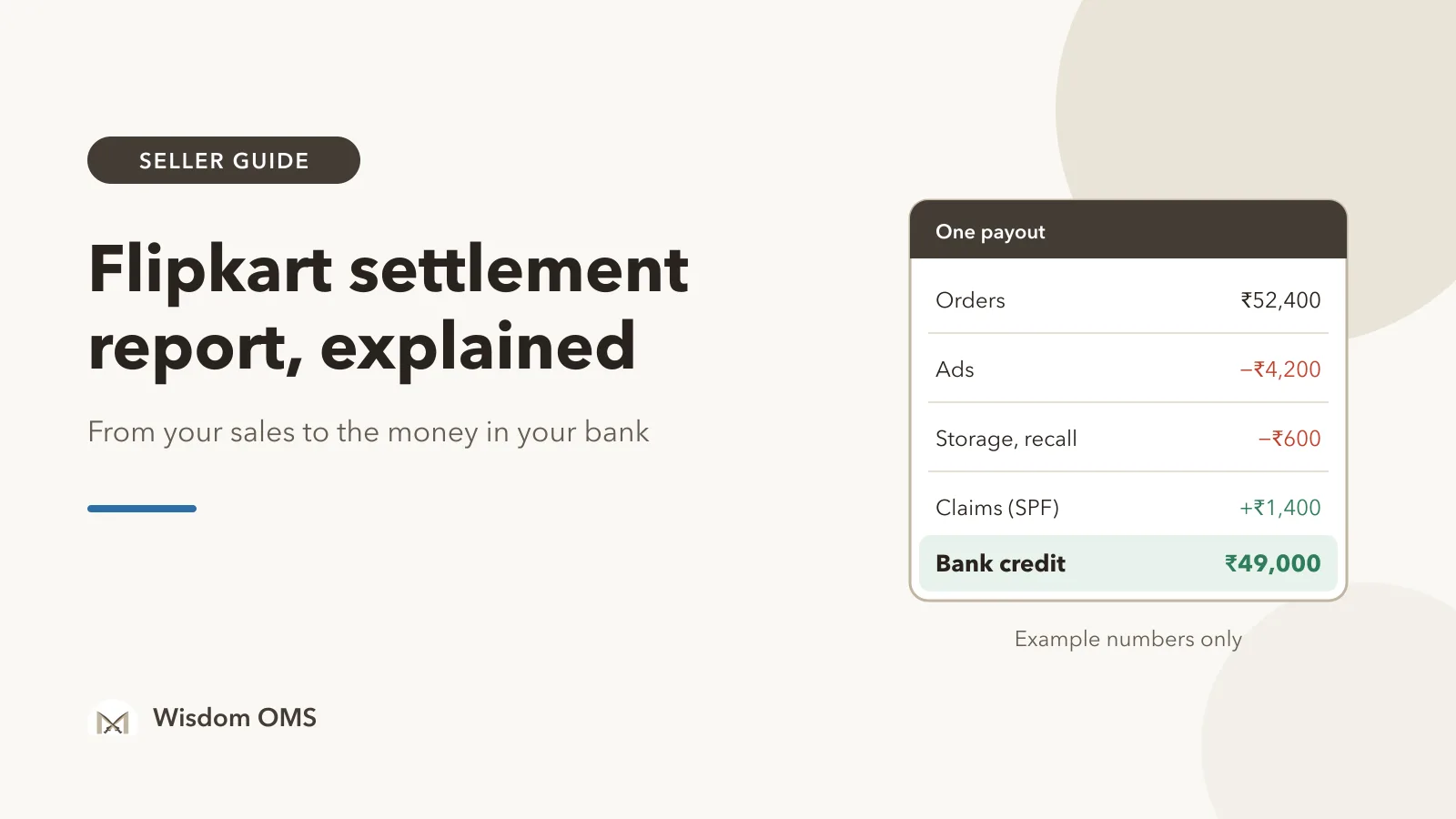
Flipkart sent ₹49,000 to your bank this week. Your sales screen says you sold far more than that. Somewhere between the two numbers are commissions, shipping fees, taxes, ad spend, returns and maybe an order or two that was never paid at all. The only place that explains the difference, rupee by rupee, is the Flipkart settlement report. Most sellers download it once, see dozens of columns and close the file.
This guide walks you through the report the way an experienced seller reads it: which sheet to open first, what "settlement value" really means, why the deposit never matches your orders sheet, and a simple weekly routine to match every order with the money that reached your bank. You can do all of it with Seller Hub and a spreadsheet.
Key takeaways
- The settlement report explains one bank deposit. Start from the deposit and work down to the orders inside it, not the other way round.
- Settlement value is what Flipkart pays you for an order after its fees, GST on those fees and tax deductions. It is the number to match, not the selling price.
- The bank credit is the total of every sheet in the report, so ads, storage, recall and claim credits move it too, not just orders.
- Match orders on the order item ID, then sort each gap: not settled yet, a reversal for a return, or unexplained. Only the last needs a ticket.
What is the Flipkart settlement report?
The Flipkart settlement report is the order-wise breakdown of a payout: every order, fee, deduction and adjustment that Flipkart added up to arrive at the amount it sent to your bank. You download it from the Payments section of Flipkart Seller Hub, for a single payout or a date range.
According to Flipkart's own report documentation, the settled transactions report covers orders, ads (PLA), TDS, SPF, storage and recall. In plain words:
- Orders: one row per order item, with the sale amount, each fee and the settlement value.
- Ads (PLA): money spent on product listing ads, taken out of your payout.
- SPF: the Seller Protection Fund, Flipkart's claim payments to you for things like damaged or wrong returns. These usually add money.
- Storage and recall: charges if you use Flipkart's warehouses, such as storage fees or getting stock sent back.
- TDS: income-tax deducted at source, which you can claim back when you file your return.
A few terms you will meet. The order item ID is Flipkart's ID for one item in an order; payments are listed against it, so it is the key you match on. The NEFT ID or UTR is the bank reference of a payout, the same reference you see in your bank statement. A reversal is money taken back from an earlier settlement, usually because the order was returned.
Settlement value: where each rupee of one order goes
Settlement value is the amount you receive for one order after Flipkart's fees, GST on those fees and tax deductions. It is always lower than the selling price, and the report shows each piece in its own column, so you can check every one.
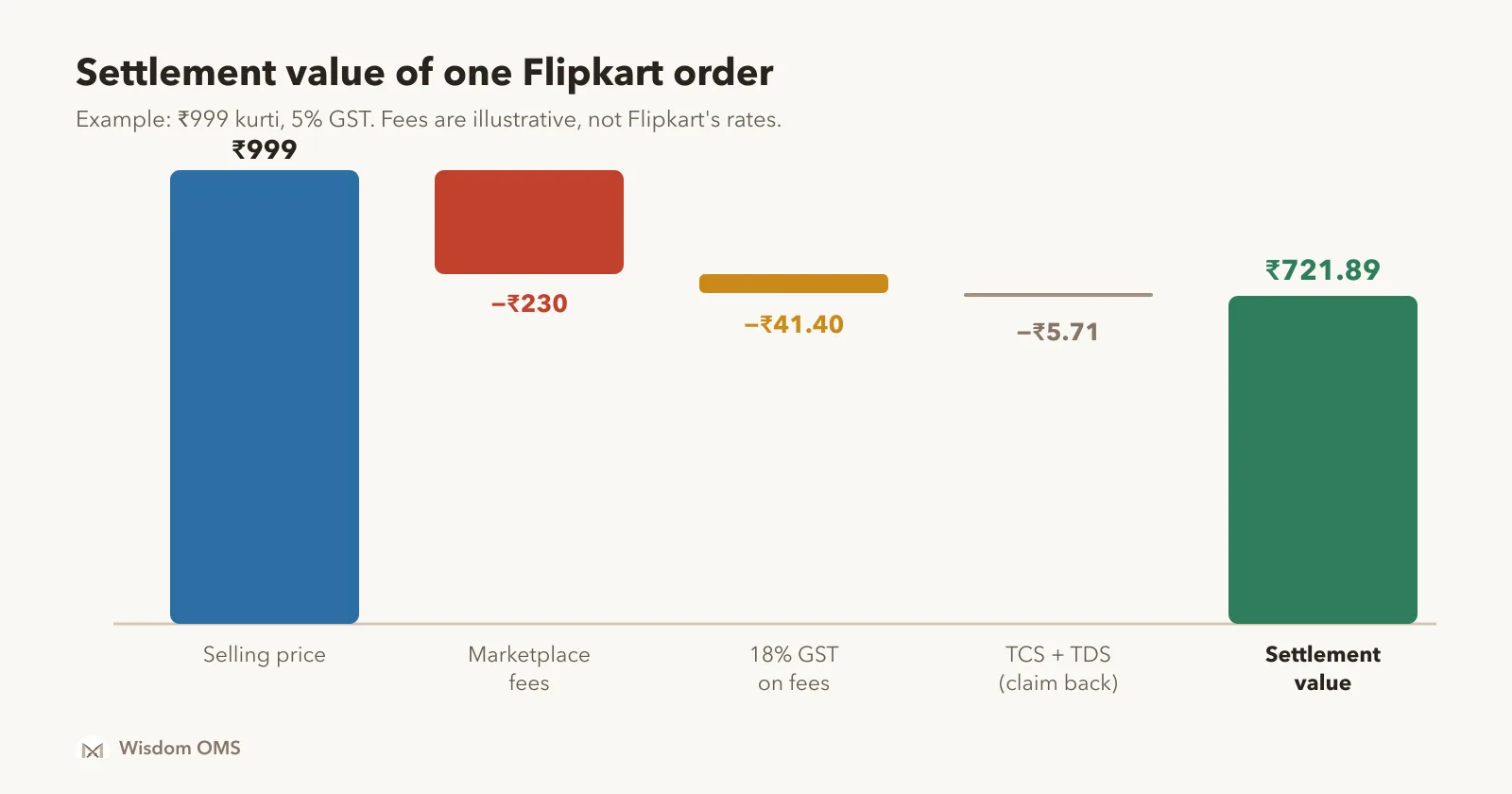
Here is that order worked through. Say a kurti sells for ₹999. The marketplace fees in this example (commission, fixed fee, collection fee and shipping fee together) come to ₹230. Flipkart charges 18% GST on its fees, which adds ₹41.40. Then come two small tax deductions. TCS (tax collected at source under GST) is 0.5% of the net taxable value; if the kurti carries 5% GST, its taxable value is about ₹951.43, so TCS is ₹4.76. In this example the income-tax TDS is ₹0.95. That leaves a settlement value of ₹721.89.
Three of those deductions are not really lost money. The 0.5% TCS rate has applied since July 2024, and the TCS shows up as a credit in your GST cash ledger. TDS can be claimed against your income tax. GST on Flipkart's fees can usually be claimed as input tax credit if you are GST-registered. Ask your accountant how this works for your business, but do not count these three as costs in your profit sheet.
Fee names and rates change by category and over time. Read the column headings in your own report rather than trusting a list from a blog or video, including this one.
Why your bank credit does not match the orders sheet
Your bank credit is the total of every sheet in the settlement report, not just the orders. Ads, storage, recall and SPF claims are added or taken out in the same payout, so the orders total alone will almost never match the bank.
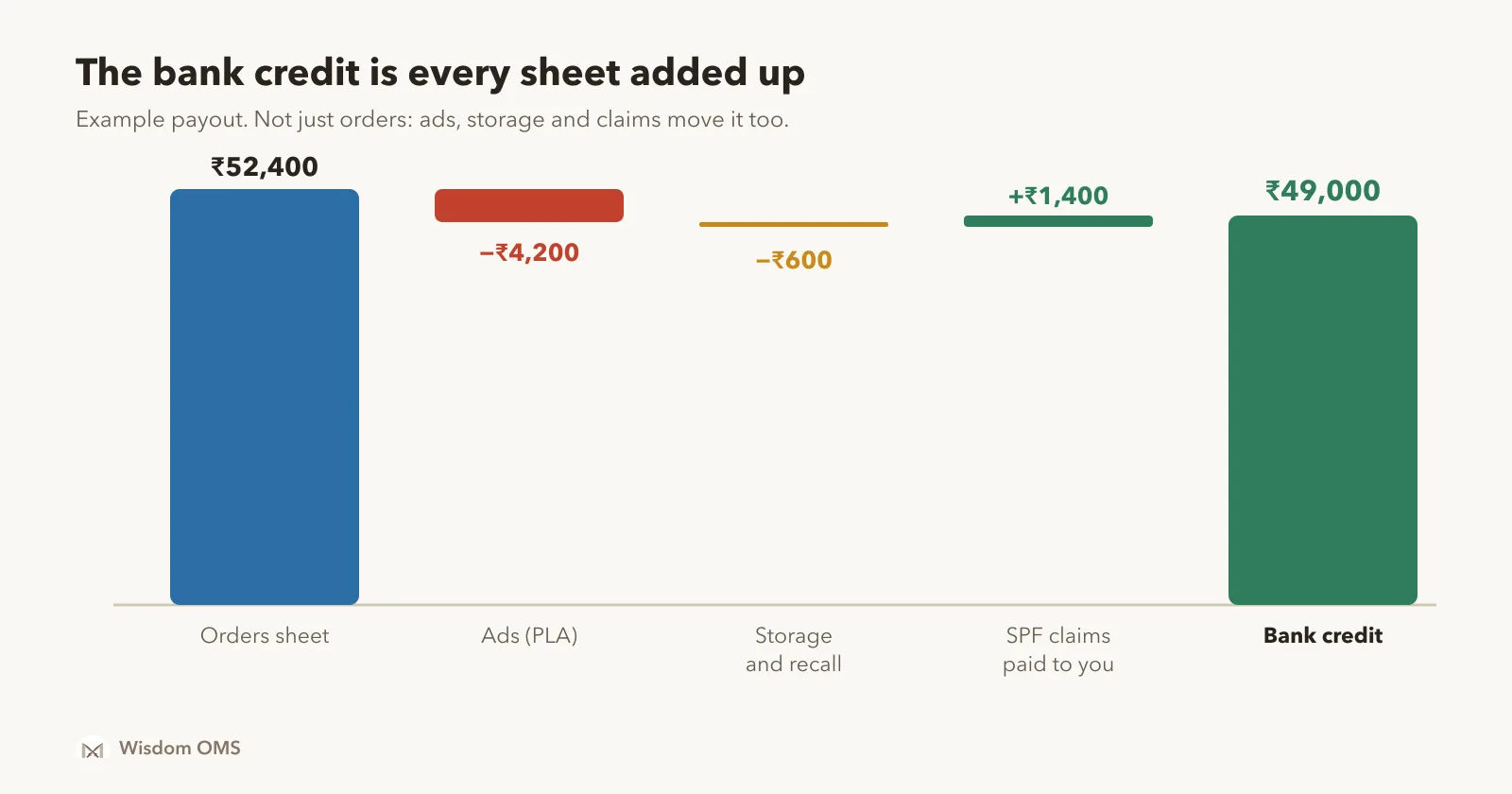
In this example, the orders sheet adds up to ₹52,400. The ads you ran that week cost ₹4,200. Storage and recall charges were ₹600. Two SPF claims were approved and paid ₹1,400. Add it up: ₹52,400 − ₹4,200 − ₹600 + ₹1,400 = ₹49,000, exactly the bank credit. If your total does not match after adding every sheet, then you have a real gap to look at.
The other common reason is timing. A deposit covers the orders Flipkart settled in that cycle, not the orders you shipped that week. An order delivered on Friday may be paid in next week's deposit. Check the payment cycle shown in your own Seller Hub rather than relying on a number you read somewhere.
Step by step: reconcile one week of Flipkart payouts
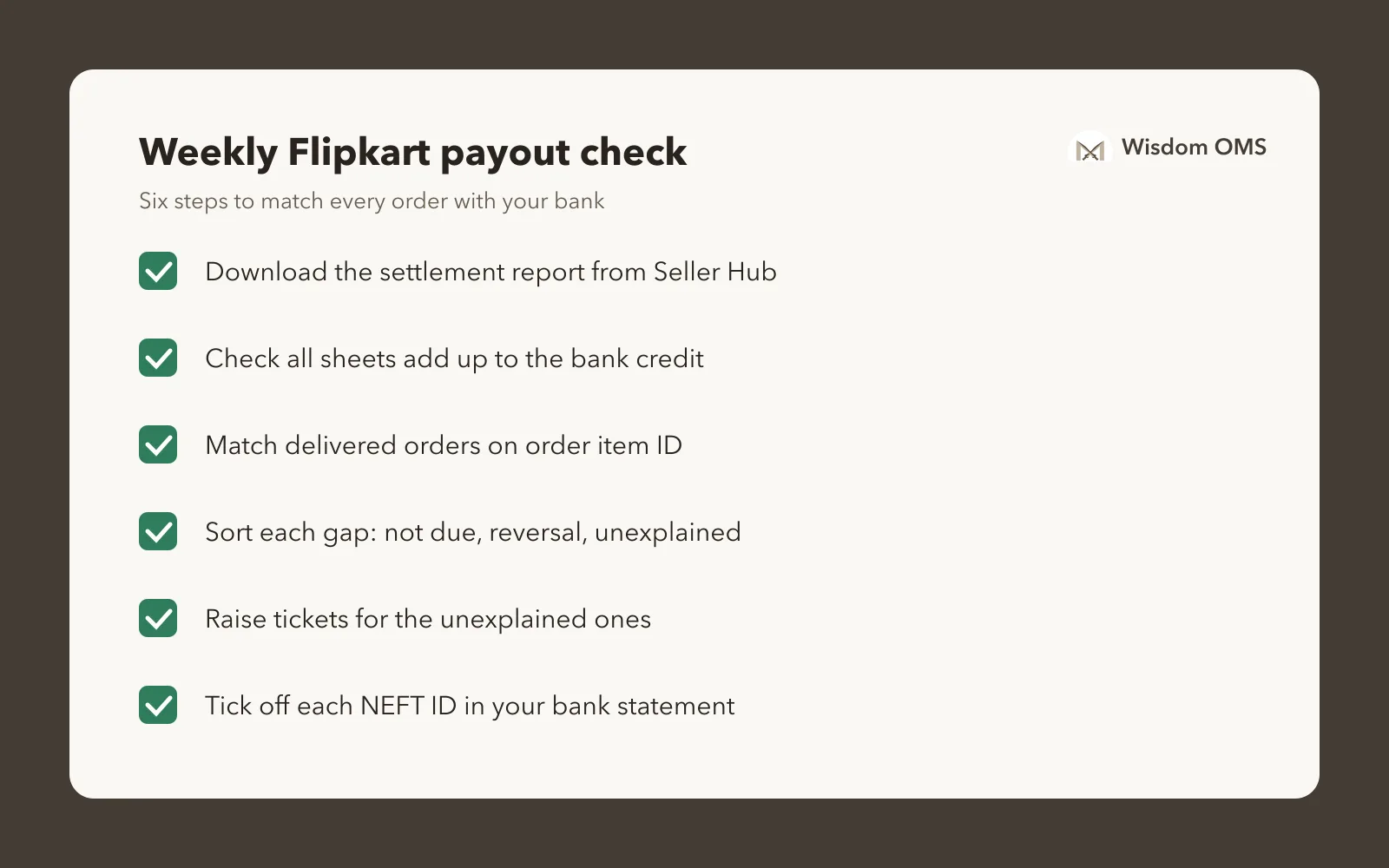
The short version: list every delivered order, bring in its settlement value from the report, and look only at the rows that do not match. Here is the full routine.
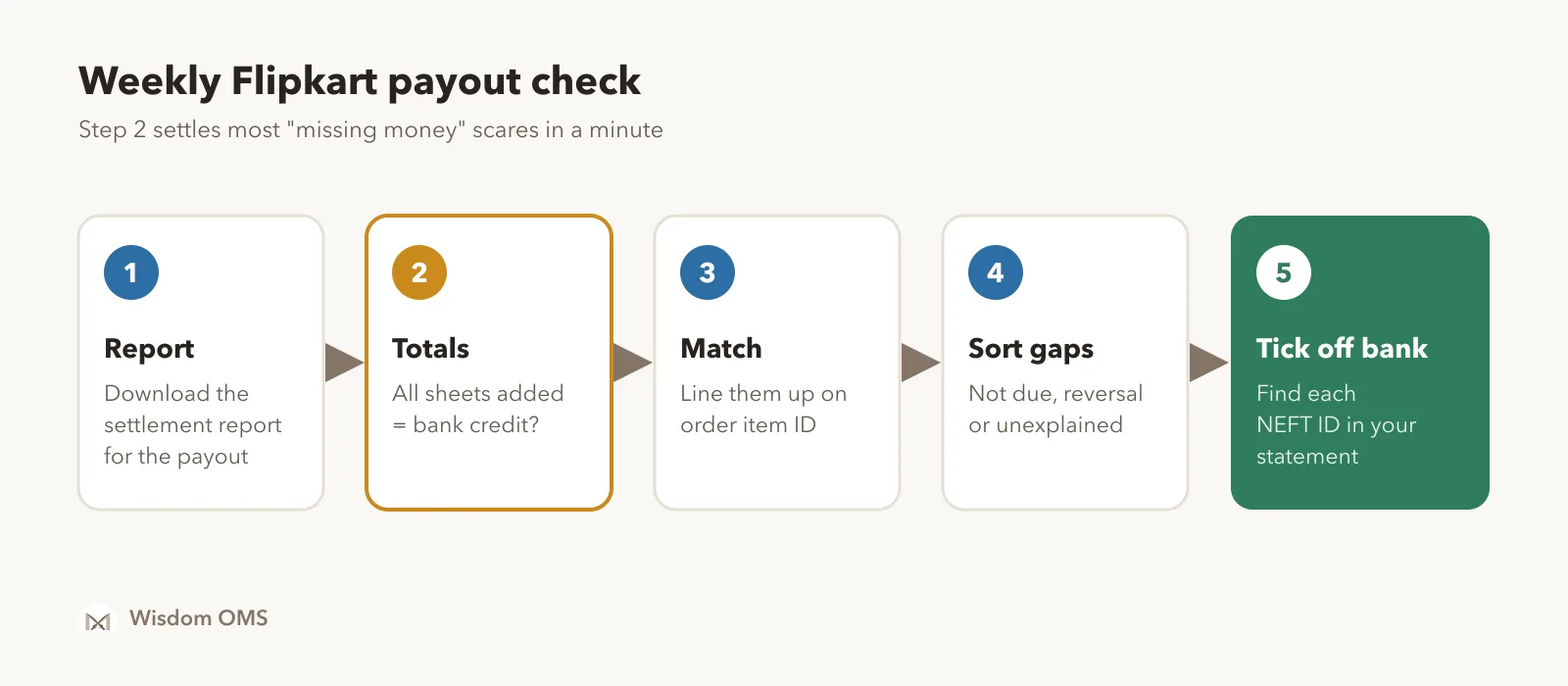
- Download the report. In Seller Hub, open Payments and download the settlement report for the payouts you received this week. Menu names change from time to time; if you cannot find it, check Seller Hub's help section.
- Check the totals first. Add the settlement value across all sheets for each NEFT ID. It should equal that payout. If it does, every rupee of the deposit is explained.
- Export your orders. Download your orders with order item ID, status (delivered, returned, cancelled) and delivered date.
- Match on order item ID. Put both in one spreadsheet and use a lookup (VLOOKUP or XLOOKUP) to bring each order's settlement value and payout date next to it.
- Filter the gaps. Show only delivered orders with no settlement, a negative settlement, or a settlement far below what similar orders get.
- Tick off the bank. Find each NEFT ID in your bank statement and mark it received.
Keep one sheet and add a new tab each week. Unpaid rows carry forward until they are paid or raised.
Sort every gap before you raise a ticket
Most gaps have a normal reason, and sorting them first saves you from raising tickets for money that is simply not due yet. Put each unmatched order into one of these rows.
| What you see | What it usually means | What to do |
|---|---|---|
| Delivered, no settlement yet | Still inside the payment cycle | Wait. Recheck after the cycle on your Seller Hub. |
| Negative settlement on an old order | Reversal: the order was returned | Check the return reached you in good condition. If not, file a claim. |
| Fee far higher than similar orders | Wrong weight slab or category fee | Check the product's listed weight and category, then raise a ticket. |
| Delivered, past the cycle, still nothing | Unexplained, money not received | Raise a payment ticket with the order item ID. |
For the last two rows, raise a ticket from Seller Hub's support section with the order item ID, the delivered date and the amount you expected. Note the ticket number next to the order and recheck it every few days. When a return comes back damaged or wrong, the claim process is similar to the one in our guide on wrong return claims: scan on arrival, keep proof, file quickly.
If you also sell on Meesho, the same idea works there with a different key; see our guide to Meesho payment reconciliation. Running two or three of these sheets every week is where the hours start to add up.
How Wisdom OMS handles this
Wisdom OMS reads your Flipkart settlement report exactly as you download it from Seller Hub. Upload it from Import > Add offline data, and every order shows its paid amount and paid date once the import finishes. No reformatting, no lookups.
The Payments screen then shows what settled today, yesterday and this month, with daily and monthly summaries you can export. Type any order number into the search box to see its expected and received payment side by side. Payments > Unpaid lists orders that have not been paid, each with its delivered date, and the Unpaid > 10 days after delivery chip pulls up late payments in one click. Bank Reconciliation lets you tick off the payouts that actually reached your bank; whatever is left is money that has not arrived.
Open any Flipkart order and View on Flipkart shows its status, journey and payout as Flipkart reports it. Because Meesho and Myntra payments land in the same screens, you check every marketplace in one place instead of one spreadsheet each. See more on the Wisdom OMS product page.
Frequently asked questions
How do I download the Flipkart settlement report?
Log in to Flipkart Seller Hub, open the Payments section and choose the settlement or payment report for a payout or a date range. The report lists each order with its fees and settlement value, plus other sheets such as ads and claims. If the menu has moved, use the search or help section in Seller Hub.
What is settlement value in Flipkart?
Settlement value is the amount Flipkart pays you for an order after deducting its fees, GST on those fees and taxes such as TCS and TDS. It is the number you should match against your bank, not the selling price. A returned order can show a negative settlement value when the earlier payment is reversed.
How do I do Flipkart payment reconciliation?
Download the settlement report and first check that the totals of all its sheets equal the bank credit for each NEFT ID. Then match your delivered orders to the report on order item ID and filter the orders with no settlement or an unusual amount. Sort each gap into not due yet, return reversal or unexplained, and raise tickets only for the unexplained ones.
Why is my Flipkart payout less than my sales?
A payout is lower than sales because Flipkart deducts its fees, GST on fees, TCS and TDS from every order, and also takes out ad spend, storage and recall charges in the same payout. Returned orders are reversed, and recently delivered orders may be paid in a later cycle. Whatever remains after these is worth raising with Flipkart.
Can I claim back the TCS deducted by Flipkart?
TCS collected by Flipkart is reported to the GST portal and appears as a credit in your electronic cash ledger, which you can use to pay GST. Check that the TCS in your settlement report matches the amount shown on the GST portal. Your accountant can confirm how to use it for your business.
Read the deposit, then the orders
The Flipkart settlement report looks complicated, but it answers one question: how did Flipkart get from your sales to this deposit? Check the sheet totals against the bank, match orders on order item ID, sort the gaps and raise tickets only for what is left. Our post on managing orders across Amazon, Meesho and Flipkart covers the rest of the multi-marketplace routine. Start free with Wisdom OMS and see every Flipkart order's paid amount and date without building the sheet yourself. Prefer your phone? Get the Wisdom app on Google Play.